
Please open this page in Google Chrome
Updating your Atom needs a feature that only Google Chrome supports, on a Windows or Mac computer (not a phone or tablet).
Welcome to the frequency revolution
Let's get your Atom updated
First, enter the email address you used when you paid.
Check your email
We emailed a 6-digit code to
You're all set!
Your code is confirmed.
First, which computer are you using?
Let's get your Atom ready
Connect your Atom to this computer using the cable that came with it.
When it's connected, a red charge light comes on next to the charge port — that's completely normal, it just means it's charging.
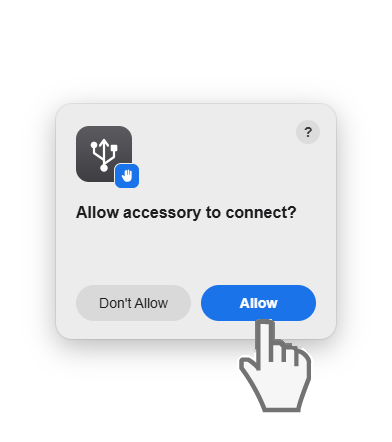
While you're connecting, your Mac will show a small box like this, asking to allow the connection. It may appear as you plug in, or when you turn your Atom on — whenever it pops up, just click Allow. You'll only see it once.
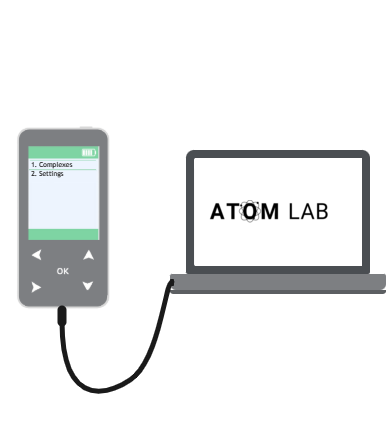
When connected, the red charge light looks like this:

Connect your Atom to this computer
Follow these steps on your Atom, one at a time. It's easy once you've seen it — take your time.
1. Press and hold the power button to turn your Atom on.

2. Press the down arrow to highlight the Settings menu.

3. Press the centre OK button to enter the settings menu.
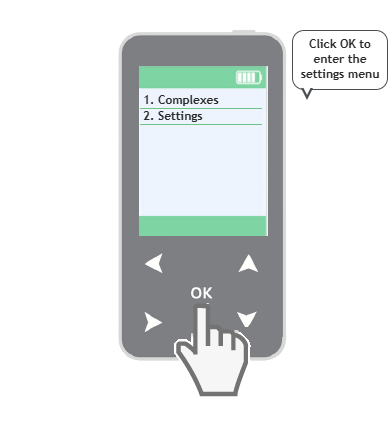
4. Press the down arrow to highlight "PC Connection" (it's just below "Mode").

5. Press OK to select "PC Connection".
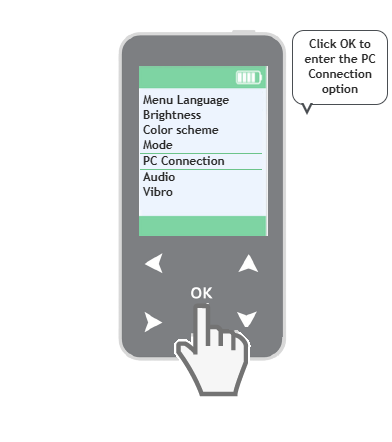
6. The screen shows "Connection" with a device icon and a PC icon. Please wait until you see a GREEN TICK appear between them.
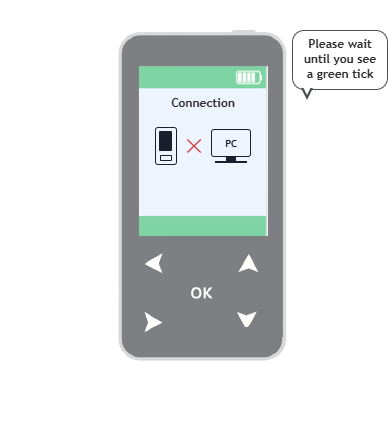
7. Once the green tick appears, your Atom is connected and ready.
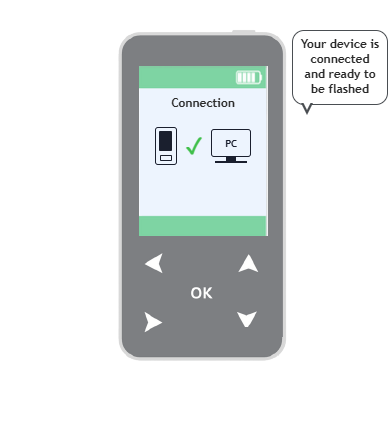
Remember: around now your Mac may show a box asking to allow the connection — just click Allow and carry on. You'll only see it once.
Take your time — but if your Atom's screen dims or switches off before you've connected, don't worry: just turn it back on and start these steps again.
Connect in your browser
Your Atom should still be showing its green tick, like this:
Now click Connect below. A small window will pop up — choose "Trinity" from the list, then click Connect. "Trinity" is simply the name of your Atom, so that's the correct one to pick.
Ready to update your Atom
That's the tricky part done. When you're ready, tap the button below. The update takes about a minute — please leave your Atom connected and this page open until it finishes.
Your Atom will keep showing its Connected screen the whole time — that's exactly what it should do. This page will tell you when the update is complete, so watch here rather than the device.
Updating your Atom…
Your Atom will stay on its Connected screen throughout — that's normal, and it does not mean it has finished. Completion is confirmed here on this page.
Update complete!
Your Atom has been updated. Just two quick things to finish.
1. On your Atom, press the left back arrow twice to get back to the home screen, then remove the cable from your device.
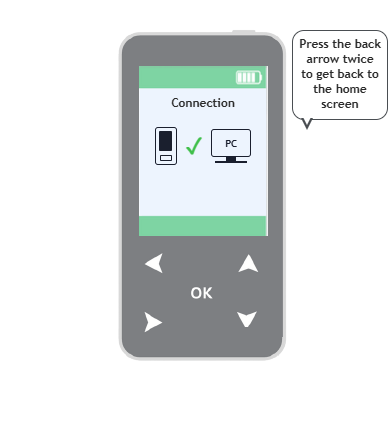
2. Now press OK on "Complexes" to open your complex list.
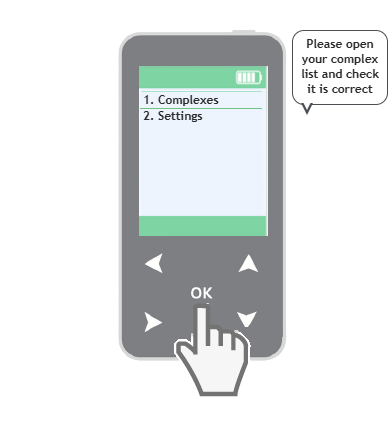
Does everything look correct?
Let's try that again
No problem — your Atom is completely safe and nothing has been changed. This happens sometimes and it's easy to sort out. Let's try once more.
Still no luck after a couple of tries? Email us at care@atomlab.uk and we'll help you directly.
Let's get this sorted
No problem — your Atom is safe and nothing has been harmed. Please contact us and we'll help you directly and make sure everything is exactly right.
Email us at care@atomlab.uk and we'll put it right for you.
Thank you — you're all done!
You can close this page now. Enjoy your updated Atom.
Stuck or unsure at any point? Email us at care@atomlab.uk and we'll happily talk you through it.